Help & Support
Everything you need to get your school on your wrist, and a real person to write to if it isn't working.
1 · Get CollegeWatch on your watch
Installing CollegeWatch on your iPhone doesn't put it on your watch by itself. The Watch app does that — automatically if you let it, otherwise with one tap.
- Open the Watch app on this iPhone
Tap the button, then make sure you're on the My Watch tab.
- Find CollegeWatch
Scroll down. Under Installed on Apple Watch? You're done. Under Available Apps? Tap Install next to it. It takes a minute or two; keep the watch nearby and unlocked.
- Open it on the watch once
Press the Digital Crown and open CollegeWatch. That first launch registers its complications with watchOS and starts the sync.
Make it automatic: Watch app ▸ General ▸ Automatic App Install on. Every app with a watch half then installs itself — and updates the same way.
Still missing after all three? Restart the watch (hold the side button, slide to power off). watchOS occasionally needs that to notice a new app.
2 · Pick your school and sync it
You pick a school once, on the iPhone. The phone then sends that school's artwork — marks, colors, rally cries — to the watch over Bluetooth, and every face and complication redraws in it. You're on your school right now.
- Choose a school
Tap the button and pick from the list. Everything in the Store, My Faces and Complications switches to that school immediately.
- Let it reach the watch
Keep CollegeWatch open on the iPhone for a moment with the watch nearby. The Quick Start row reads Syncing… while the artwork is in flight, then On your watch.
- Open CollegeWatch on the watch once
That first open finishes the job: the watch shows Sync complete and swaps its faces to your school.
Switching later repeats the same sync. Faces you already saved to the watch are photos and stay as they were — save new ones for the new school.
Watch says Waiting for iPhone…? The phone hasn't sent the school yet: open CollegeWatch on the iPhone and bring the watch close.
3 · Put a face on your watch
CollegeWatch faces install as Apple Watch Photos faces: our art, Apple's clock on top. Every face is designed with the clock area kept clear.
- Pick a face
Browse your school's faces in the Store or My Faces and tap Save to Watch.
- Create the watch face
The share sheet slides up. Scroll it down and choose Create Watch Face, then Add. If you don't see it, choose Save Image, then open the Watch app ▸ Face Gallery ▸ Photos and pick the saved image.
- Set it as current
Tap Set as current Watch Face. Swipe between faces on the watch any time.
Blurry or cropped? Save from the app rather than a screenshot, and let the Photos face crop without zooming — faces export at your watch model's exact resolution.
4 · Meet your 25 complications
A complication is one of the small live tiles on a watch face, and CollegeWatch has 25 of them for your school. This page shows each one as it actually draws on the watch, in your school's colors, with what it does, which slot shape it fits, and which purchase unlocks it. Every purchase includes everything below it: a single face unlocks the Starter ones, the Face Pack adds more, the School Pass unlocks all 25.
Slot shapes. Round slots are the small circles on faces like Modular and Infograph. Wide slots are the rectangles, like the middle of Modular. Corner slots are Infograph's four corners. The Extra Large face has one big slot.
Your school, every day
These need no scores or schedule. They're your school's marks and cheers, and they look right on any day of the year, so they're the ones to start with.

Your school's mark in a round slot, your pick of all its official marks. On the Extra Large face it fills the screen.
Round slot · Face Pack

A cheer with a mark: "Go Blue Devils®" beside the Iron Duke D, for example. Mix any cheer with any mark, even a different one in each corner.
Corner slot · Face Pack

Rally Cry in a round slot inside the dial. Put it in Infograph's top sub-dial and the cheer curves above the mark — that's the wordmark look; in the other round slots the cheer sits beneath the mark. Any cheer with any mark. The watch's picker lists it as Rally Cry, one line per cheer-and-mark pair.
Round slot · Face Pack

Your crest as big as the watch allows, for the Extra Large face.
Extra Large face · Any single face
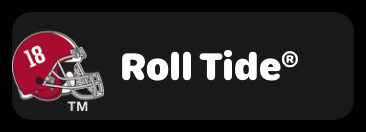
Wide slot · Any single face

Your mascot, in a round slot.
Round slot · Any single face
Countdown and schedule
Everything about the next game: when it is, who it's against, and how long you have to wait.
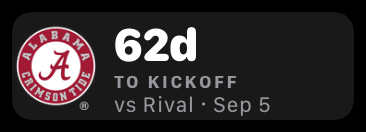
Wide slot · Free
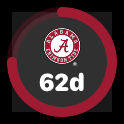
The same countdown as a ring that winds down toward kickoff.
Round slot · Face Pack

A running count of days since the last loss, or since the last title.
Round slot · Face Pack
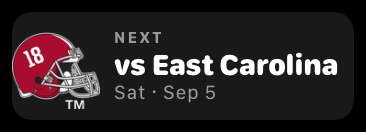
Wide slot · Face Pack
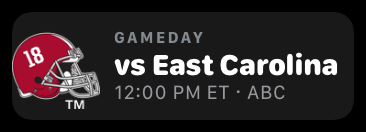
Wide slot · Face Pack
Team stats
The numbers fans argue about, kept current through the season. These come with the School Pass.

Five numbers in one slot: record, AP ranking, this week's spread, cover record, and SP+ rating. It turns to the next one every five minutes; the dots show which is up.
Round slot · School Pass

Wins and losses this season.
Round slot · School Pass

Where you sit in the AP poll, or NR if unranked.
Round slot · School Pass

Your place in the conference race.
Round slot · School Pass

This week's betting line, from your team's side.
Round slot · School Pass

A national rating of how good the team really is, from the SP+ system.
Round slot · School Pass
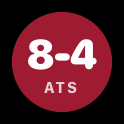
How often the team has beaten the point spread this season.
Round slot · School Pass
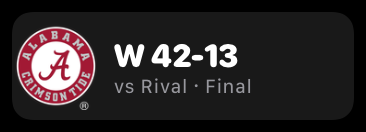
Wide slot · School Pass
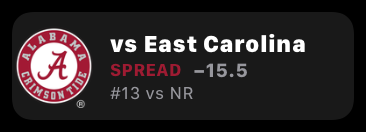
Wide slot · School Pass
Gameday live
These wake up when the game starts and update through it. School Pass only.
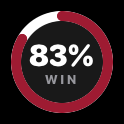
The live chance your team wins, as a ring in team color. Before the game it's based on the betting line; during the game it moves with the score.
Round slot · School Pass
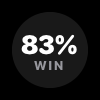
The same live win probability, drawn as an arc in an Infograph corner.
Corner slot · School Pass
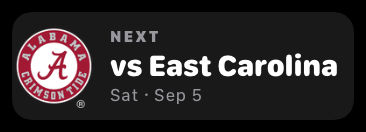
Wide slot · School Pass
At the stadium
Conditions at your school's home field, wherever you are.
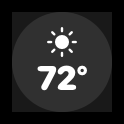
Current conditions and temperature at the stadium.
Round slot · Face Pack
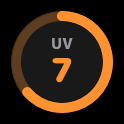
How strong the sun is at the stadium, for the fans in the stands.
Round slot · Face Pack
See them on a face
The next guide, "Add complications to a face", walks through putting these on Modular and Infograph step by step, with the face on screen as your preview.
5 · Add complications to a face
Complications are the live pieces — score, countdown, mark, rally cry — that sit in a face's slots. They show your school because that's the school selected in this app.
One thing to know before you start: complications go on Apple's own watch faces, the ones with empty slots such as Modular and Infograph. A CollegeWatch face, the kind you save from this app, is a photo face and shows artwork and the time only; Apple doesn't give photo faces any slots. Most fans keep both on the watch and swipe between them: a your school face for looks, and an Apple face filled with your school complications for gameday.
- Open the Watch app
Tap the button, then on My Watch choose an Apple face that has complication slots, or add one from Face Gallery. See the table below for which faces have slots — not every face does, and CollegeWatch's own photo faces don't.
- Tap a complication slot
Each face shows its slots as outlined shapes. Tap one — a list of apps opens.
- Scroll to CollegeWatch and pick
Apps are listed by name. Under CollegeWatch, tap a complication and watch the face at the top of the screen: it redraws with that complication in the slot, in your school's marks and colors. That's your preview — try a few. Repeat for the other slots, then tap Set as current Watch Face.
Which face has which slots
Modular: 1 wide slot in the middle, round slots top and bottom
Infograph Modular: 1 wide slot, 3 round
Infograph: 4 corners, 4 round, plus the dial (In-Dial Wordmark)
Extra Large: 1 slot — Full-Screen Crest or Team Mark
California · Metropolitan · Simple: Analog: corners + round; best with In-Dial Wordmark and Kickoff Countdown
CollegeWatch faces (photo faces): No slots — artwork and the time only. Keep one for looks and an Apple face for complications.
Which complication fits which slot
Rectangular: Wordmark · Next Opponent · Gameday Card · Matchup Card · Live Stats · Team Ticker
Circular: Team Mark · In-Dial Wordmark · Mascot · Kickoff Countdown · Countdown Gauge · Days Since · Record · Ranking · Conference Standing · Spread · SP+ Rating · ATS Cover Record · Last Result · Win Probability · Stadium Weather · Stadium UV Index
Corner: Rally Cry · Corner Win Gauge
Extra Large: Full-Screen Crest
CollegeWatch isn't in the list? The watch app isn't installed yet, or hasn't been opened once — guide 1 covers both; a watch restart clears the rest.
A single face unlocks the 3 Starter complications, a Face Pack unlocks 12, a School Pass unlocks all 25.
6 · A face before and after
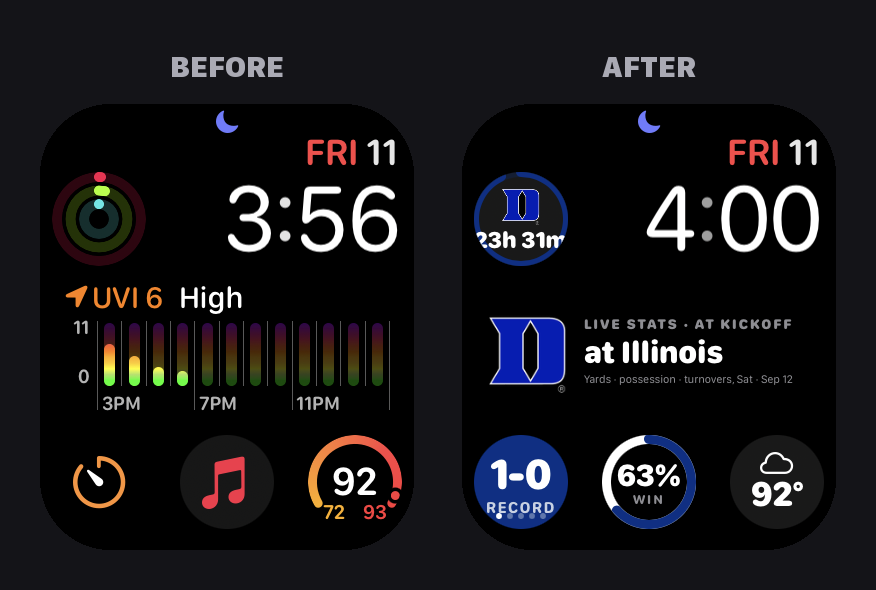
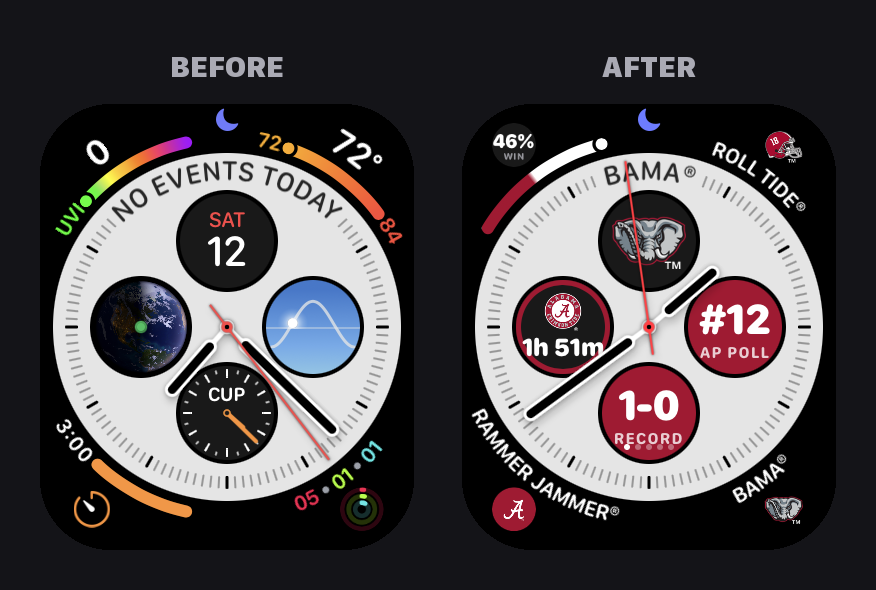
Here's the whole idea in two pictures per face: Apple's face as it comes, and the same face after you've filled its slots with your school. Nothing about the face itself changes; the empty slots simply fill with your school.
Modular
Before: Apple's Modular face as it comes: activity rings top-left, a UV index chart across the middle, and a timer, Music and the temperature along the bottom.
After: the top-left slot shows the Kickoff Countdown with the team mark, the wide middle slot shows Live Stats (the next game until kickoff, then the live score), and the bottom row holds Record, the Win Gauge and Stadium Weather. Same face, now your school's.
Infograph
Before: Apple's Infograph face as it comes: the date and a few Apple complications in the four round slots, and weather, UV and a timer in the corners.
After: the corners belong to the brand — the Corner Win Gauge top-left and Rally Cry in the other three (Roll Tide®, Rammer Jammer®, Bama®, each with its own mark). The top round slot is the in-dial wordmark: Rally Cry again, and in this one slot the cheer curves above the mark. The other round slots hold Kickoff Countdown (with the mark), Ranking and Record. Same face, now your school's.
7 · Unlock faces and complications
Four free faces and three complications come with every school. Everything else unlocks one of three ways, and each button says exactly what it does.
- Buy · $1.99
One face, yours forever, plus the 3 Starter complications. Tap Buy under any face in the Store.
- Buy All · $4.99
Every your school face, forever — the Face Pack — plus 12 complications. Tap Buy All on the pack row or on any pack-tier face.
- Subscribe · $19.99 a year
The your school School Pass: every face, all 25 complications, and live scores and stats on gameday. Each school has its own Pass, and two can be active at once.
- Apple takes it from there
Apple's purchase sheet confirms with Face ID. The item reads Owned or Active the moment it clears, and the watch unlocks within a few seconds.
New phone, or something still locked? Settings ▸ Restore Purchases. Purchases follow your Apple Account, not the phone.
An item reading temporarily unavailable means the App Store couldn't offer it just now. Your purchases are safe; try again in a few minutes.
Questions
Getting started
How does CollegeWatch work with the Apple Watch app?
CollegeWatch is made up of two apps: this iPhone app, where you pick a school, buy faces and complications, and save faces; and a small watch app that installs on your Apple Watch and carries your school's artwork and 25 complications onto the wrist. Separately, Apple has its own Watch app, where CollegeWatch faces and complications get assembled. CollegeWatch works with Apple's Watch app so you can put your favorite college watch face and complications onto your Apple Watch. So the loop is: choose here, save here, then open the Watch app to put it on a face. The Quick Start in Settings has buttons that open Apple's Watch app for you at the right step.
What are the CollegeWatch pricing tiers?
There are four ways to enjoy your school on your wrist, and you can start with the free one and move up whenever you like.
Free. Every school comes with four faces and three complications at no charge. You don't have to buy anything to put your school on your watch today.
A single face, $1.99. Pick any one face you love and it's yours to keep forever. It also unlocks the three Starter complications, the small live pieces like the kickoff countdown.
The Face Pack, $4.99. Every your school face, yours forever, plus twelve complications. If you like more than two faces, this is the better deal.
The School Pass, $19.99 a year. Everything: every face, all 25 complications, and live scores and stats on your wrist on gameday. New faces added during the season are included too. Each school has its own Pass, so if you follow two schools you'd buy one for each.
Prices show in your own currency in the Store, and every purchase is handled by Apple, so it appears on your Apple receipt like any other app purchase.
How complications work
What is a complication?
"Complication" is Apple's word for the small live tiles on an Apple Watch face, the ones that show the weather, your next meeting, or your step count. It's an odd word, but that's all it means: a little window on your watch face that shows something useful and updates by itself.
CollegeWatch gives you 25 of them for your school: the score during a game, a countdown to kickoff, your team's record and ranking, the weather at the stadium, your school's mark or rally cry, and more. They come in your school's colors, and they update on their own without you opening anything.
Complications live inside a watch face's slots, so you pick one of Apple's faces that has slots (Modular and Infograph are good ones) and choose which CollegeWatch complication goes in each one. The CollegeWatch faces you save from this app are photo faces, which Apple doesn't give slots, so most fans keep one of each on the watch and swipe between them. The next few questions walk through exactly how.
What are the CollegeWatch complications?
There are 25, and they fall into five families, so you can think of them by what they do for you rather than trying to remember all the names.
Brand. Your school on your wrist, no data needed: Team Mark, Rally Cry, In-Dial Wordmark, Full-Screen Crest, Wordmark, and Mascot. These are the ones to start with, because they look right every day of the year.
Countdown and schedule. How long until the next game and who it's against: Kickoff Countdown, Countdown Gauge, Days Since (the last loss, or the last title), Next Opponent, and the Gameday Card with kickoff time and channel.
Team stats. The numbers fans argue about: Record, Ranking, Conference Standing, Spread, SP+ Rating, ATS Cover Record, Last Result, the Matchup Card, and the Team Ticker, which rotates through several of these in one slot.
Gameday live. These only wake up during a game: Win Probability, the Corner Win Gauge, and Live Stats with the score, yards, and turnovers.
Stadium. Stadium Weather and Stadium UV Index, the conditions at your school's home field.
The Complications tab in this app shows every one of them with a picture, in your school's colors, and tells you which purchase unlocks it.
The guide Meet your 25 complications, in the Guides section above, shows every one of them drawn in your school's colors.
Which Apple faces can I put them on?
Any Apple Watch face that has empty slots for complications, and most of Apple's do. A few good ones to start with:
Modular has one wide slot across the middle and small round slots above and below. It's the easiest place to start.
Infograph has four corner slots and four round slots, so it holds the most at once.
Extra Large has one big slot, perfect for your school's crest filling the screen.
The one kind of face that can't take complications is a photo face, and that includes the CollegeWatch faces you save from this app: Apple lets those show a picture and the time, nothing more. So the usual setup is two faces on the watch: a your school face for the artwork, and an Apple face with your school complications, and you swipe between them.
You'll find Apple's faces in the Face Gallery inside Apple's Watch app on your iPhone. Add one, then follow the steps in "How do I see what one looks like before choosing it?" to fill its slots.
Which complication fits which slot?
Each slot on a watch face has a shape, and each CollegeWatch complication is built for one or more shapes. When you tap a slot, the watch only offers the complications that fit it, so you can't choose wrong. But if you're planning a face, here's the map.
Wide slots (the rectangle in the middle of Modular) take the ones with more to say: Wordmark, Next Opponent, Gameday Card, Matchup Card, Live Stats, and the Team Ticker.
Round slots take the single-number tiles and marks: Team Mark, Mascot, Kickoff Countdown, Countdown Gauge, Days Since, Record, Ranking, Conference Standing, Spread, SP+ Rating, ATS Cover Record, Last Result, Win Probability, Stadium Weather, and Stadium UV Index.
Corner slots (Infograph) take Rally Cry and the Corner Win Gauge.
The Extra Large slot takes the Full-Screen Crest.
How do I see what one looks like before choosing it?
You'll see it on the face itself before you commit to it. Here's the whole process, and it happens on your iPhone, not on the watch.
Open Apple's Watch app on your iPhone. On the My Watch tab, tap the face you want to change. You'll see a picture of that face at the top of the screen with its slots outlined. Tap one of those slots and a list of apps appears. Scroll down to CollegeWatch and tap it, and you'll see a list of complication names.
Now tap any name. Look up at the picture of the face: it redraws with that complication in the slot, in your school's colors, exactly as it will look on your wrist. Tap a different name and it changes again. Try as many as you like; nothing is saved until you're done.
When you like what you see, tap Set as current Watch Face at the bottom, and it appears on your watch within a few seconds.
If you want to browse the complications with pictures before any of this, the Complications tab in this app shows every one.
Rally Cry shows only the mark on my face
This one depends on which watch face you put it on, and which slot, and it's Apple's design rather than a problem with your watch.
Rally Cry is your school's mark plus a cheer, like "Go Blue Devils®". Some slots have room for a line of text next to the mark, and there the cheer appears beside it: Infograph's four corners (the cheer curves along the edge) and Infograph's top round slot (the cheer curves above the mark, the in-dial wordmark). Other slots, like Modular's and Infograph's side and bottom round slots, don't have that text space, so the cheer moves inside the circle in small type underneath the mark.
If you'd like the cheer on its own with no mark, choose the text only version of Rally Cry from the list. And if you want the cheer big and readable, Infograph's corners are the best place for it.
How do I set the in-dial wordmark?
The in-dial wordmark is your cheer curving above your mark inside the dial, the way "BAMA®" sits over Big Al in the picture on the A face before and after guide. It is the Rally Cry complication in one particular slot: Infograph's top round slot. Here's how to set it.
1. On your iPhone, open Apple's Watch app and tap your Infograph face (or add one from the Face Gallery).
2. Under Complications, tap Sub Dial Top.
3. Scroll to the CollegeWatch section. You won't see the words "Rally Cry" there; the list shows each cheer paired with a mark, one line per pairing, such as Bama® · Big Al or Roll Tide® · Script A.
4. Tap the pairing you want, then tap Set as current Watch Face (or just leave the screen; the change is saved).
On the watch, the cheer now curves above the mark in that top slot. The same pairing placed in the left, right or bottom round slot shows the mark with the cheer in small type beneath it, because only the top slot has room for the curve. To change the cheer or the mark later, tap Sub Dial Top again and pick a different pairing.
The Team Ticker isn't changing
It is changing, just slowly, and that's on purpose. The Team Ticker shows five of your team's numbers in one slot: record, AP poll ranking, this week's point spread, ATS cover record, and SP+ rating. Rather than flashing between them, it turns to the next one every five minutes, so a full trip through all five takes about 25 minutes.
The little row of dots underneath the number tells you which of the five you're looking at. Apple doesn't let any watch face animate, so it will never scroll or flip while you watch. Glance again in a few minutes and it will have moved on.
Live Stats looks like Next Opponent
Before a game starts, there are no live statistics to show, so the Live Stats tile shows the next game instead, under a small heading that reads LIVE STATS · AT KICKOFF. That heading is how you can tell it apart from the Next Opponent tile.
The moment your school's game kicks off, it switches over: the score, the quarter and clock, total yards, who has the ball, and turnovers, all updating through the game. When the game ends it goes back to showing the next one.
Live Stats is part of the School Pass, so it needs an active Pass for your school to show live numbers.
How do Live Stats work?
If you have a School Pass for your school, your watch gets live game information on gameday: the score, the quarter and time remaining, yards, who has possession, turnovers, and a win probability that moves with the score. All of it shows up in the Live Stats, Win Probability, and Corner Win Gauge complications without you opening anything.
Between games, those same tiles show your next kickoff. During the off-season they show last season's record. They never make numbers up: if there's no game and no line, they say so rather than guessing.
How current is it? During a game the face refreshes itself about every 5 to 8 minutes. That's a limit Apple puts on every watch face, not something we chose; it keeps the watch's battery honest. So a touchdown reaches the face a few minutes after it happens.
Want a real live update, no delay? Raise your wrist and open the CollegeWatch app on the watch (press the Digital Crown, tap CollegeWatch). The face refreshes the moment the app opens, and again each time you come back to it. Opening the app on your iPhone does not do this; only the app on the watch reaches the watch face.
My complication shows a sample number, or nothing
A dash, or a tile that looks empty, means the watch doesn't have your school's information yet. That's normal on a brand-new install, and it fixes itself once the phone and watch talk.
Open CollegeWatch on your iPhone and give it a moment. It downloads your school's schedule and stats and sends them to the watch. Then open CollegeWatch on the watch once. Within a minute the tiles fill in.
Two other things to check: make sure your school is the school selected in this app (Settings ▸ Quick Start shows which school is active), and remember that during the off-season the tiles show the next scheduled game or last season's record, because there's nothing live to show.
CollegeWatch isn't in the complication list
When you tap a slot in Apple's Watch app and scroll the list of apps, CollegeWatch only appears if the CollegeWatch watch app is actually installed on your watch and has been opened at least once. Installing on your iPhone isn't enough by itself.
Here's the fix, in order. Open Apple's Watch app on your iPhone and scroll down the My Watch tab. If CollegeWatch is listed under Available Apps, tap Install next to it and wait a minute or two with the watch nearby. Then, on the watch, press the Digital Crown and open CollegeWatch once. Now go back and edit the face again; CollegeWatch will be in the list, sorted alphabetically by app name.
If it's still missing after all that, restart the watch by holding the side button and sliding to power off. That clears it up in the rare case where the watch hasn't noticed a new app yet.
How many complications do I get?
It depends on what you've bought, and every level includes everything below it.
With just the free faces, you get three Starter complications. Buying any single face also unlocks those three. The Face Pack unlocks twelve. The School Pass unlocks all 25, including the live gameday ones.
The Complications tab in this app shows every one with a picture and which level unlocks it, so you can see exactly what each purchase adds.
Faces
How do I put a face on my watch?
Faces travel from this app to your watch through your iPhone's share menu, and it takes about a minute the first time.
In this app, find a face you like and tap Save to Watch. A menu slides up from the bottom of the screen. Scroll that menu down (this is the step people miss) until you see Create Watch Face, and tap it. Your iPhone shows the face with an Add button; tap it, and the face is sent to your watch and set as the current one.
If you don't see Create Watch Face in the menu, choose Save Image instead. Then open Apple's Watch app, go to Face Gallery, scroll to Photos, tap Add, and choose the picture you just saved.
The Quick Start in Settings has a button that starts this for you, and the first guide walks it through step by step with pictures of the menu.
Why is the time in Apple's font, not the design?
Apple doesn't allow any other company to make a complete watch face, so CollegeWatch faces are a special kind of Apple face called a Photos face: our artwork on the bottom, Apple's clock on top. That's true for every app on the App Store, not just ours.
We design every face with that in mind. The clock area at the top is kept clear so the time is always crisp and readable, and the artwork is arranged around it. You can pick the clock's color in Apple's Watch app to match.
One more thing Apple decides: photo faces have no slots for complications. For those, add one of Apple's faces alongside, fill it with your school complications, and swipe between the two.
Can I get an analog face?
Yes, though it works a little differently. Apple doesn't allow anyone else to design an analog face with hands, so instead CollegeWatch dresses one of Apple's own analog faces in your school's colors.
Open Apple's Watch app, go to Face Gallery, and add one of Color, California, Metropolitan, or Simple. Set the dial color to your school's color. Then tap the slots and add CollegeWatch's In-Dial Wordmark, which curves your school's cheer around the dial with the mark in the center, and the Kickoff Countdown. You get real moving hands with your team all over the dial.
The face looks blurry or cropped
This almost always means the picture went to the watch a different way than we intended.
Use Save to Watch in this app rather than taking a screenshot of the face. A screenshot is a lower-quality copy and includes the phone's screen edges. The app saves each face at the exact size of your watch screen, so it lines up perfectly.
If you're adding the face through the Watch app's Photos option, don't zoom or crop the picture when it asks; just tap Add. The artwork is already the right shape.
I switched schools and my faces changed
That's by design: CollegeWatch shows one school at a time, and everything follows the school you've selected. Switch to a different school in the app and the Store, My Faces, the Complications tab, and the complications on your watch all change to that school. Switch back and they return.
The exception is faces you've already saved to your watch. Those are pictures, so they stay exactly as you saved them, whichever school is selected. If you'd like faces for the new school on the watch, save them the same way.
Your purchases for each school are kept separately and are always there when you switch back.
Buying
What do Buy, Buy All and Subscribe mean?
You'll see three kinds of button in the Store, and each one says what it does.
Buy appears under a single face. Tap it and that one face is yours forever, along with the three Starter complications.
Buy All appears on the Face Pack row and on faces that are only sold as part of the pack. Tap it and you get every your school face, forever, plus twelve complications.
Subscribe appears on the School Pass. Tap it to start a yearly subscription for your school: every face, all 25 complications, live scores and stats on gameday, and any new faces added during the season. It renews once a year until you cancel.
Whichever you tap, Apple shows its own confirmation with the price before anything is charged, and you confirm with Face ID or your passcode. Nothing is bought by accident.
Can I have passes for two schools?
Yes. Every school has its own School Pass, and you can hold as many as you like at the same time. A Duke Pass and an Alabama Pass, for example, both stay active together.
To buy a second one, switch the app to that school and tap Subscribe on its Pass. Settings ▸ School Pass lists all the schools where your Pass is active.
A face or pass says “temporarily unavailable”
Every purchase in CollegeWatch is sold by Apple's App Store, and now and then the App Store can't offer an item at that moment. Usually it's a brief outage on Apple's side, or a brand-new item that's still being approved. It has nothing to do with your purchases, which are all safe.
Wait a few minutes and try again; a Retry banner appears at the top of the Store when this happens, and tapping it usually clears it. If a particular face stays unavailable for a whole day, email us and tell us which one, and we'll look into it.
I bought something but it's still locked
First, give it a moment: after a purchase the app confirms it with Apple, which can take a few seconds, and the face flips to Owned on its own.
If it stays locked, open Settings in this app and tap Restore Purchases. That asks Apple for everything your Apple Account has bought and unlocks it. Then open CollegeWatch on the watch once so it catches up.
If that still doesn't do it, close CollegeWatch fully (swipe it away in the app switcher) and open it again; purchases are checked every time the app starts. And if you were charged but the item never unlocks, email us with the face name and we'll sort it out.
How do I cancel a School Pass?
Subscriptions are managed by Apple, not inside this app, which means the cancel button lives in your iPhone's Settings.
Open Settings on your iPhone, tap your name at the top, tap Subscriptions, then tap CollegeWatch. You'll see each School Pass you hold; tap one and choose Cancel Subscription.
Cancelling doesn't take anything away right away. Everything the Pass unlocked stays unlocked until the end of the year you've already paid for; it simply won't renew after that.
How do refunds work?
Because every purchase is made through Apple, refunds go through Apple too, and we can't issue one ourselves.
Go to reportaproblem.apple.com in any browser, sign in with your Apple Account, find the CollegeWatch purchase, and choose Request a refund. Apple usually decides within a few days and emails you the result.
Will my purchases move to a new phone or watch?
Yes. Your purchases belong to your Apple Account, not to any particular phone or watch, so they come with you.
On the new phone, sign in with the same Apple Account, install CollegeWatch, and open Settings ▸ Restore Purchases. Everything you've bought unlocks. Then open CollegeWatch on the new watch once and your complications come along too. Faces you'd saved to the old watch are pictures, so you'll save them again on the new one.
Watch and sync
CollegeWatch isn't on my watch
Installing CollegeWatch on your iPhone doesn't automatically put it on your watch. Apple's Watch app does that, and it needs one tap from you the first time.
Open Apple's Watch app on your iPhone and scroll down the My Watch tab. You'll find CollegeWatch under Available Apps. Tap Install next to it. It takes a minute or two; keep the watch close to the phone and unlocked. When it's done, CollegeWatch moves up to the Installed on Apple Watch list.
To have this happen by itself for every app in future, turn on General ▸ Automatic App Install in the Watch app. The first guide in Help walks through all of this with a button that opens the Watch app for you.
The watch says “Waiting for iPhone…”
That message means the watch app is installed but hasn't yet heard from your iPhone which school you follow. The two need to be near each other and the phone app needs a moment to send it.
Open CollegeWatch on your iPhone and leave it on screen for a few seconds with the watch nearby. It sends your school and its artwork over Bluetooth. On the watch, the message changes to Syncing… and then Sync complete, and your faces appear. If it doesn't change within a minute, open CollegeWatch on the watch once; that nudges it along.
The watch still shows my old school
The watch only changes school when it hears from the phone, so it needs one quick sync after you switch.
Open CollegeWatch on your iPhone with the watch nearby, wait a few seconds, then open CollegeWatch on the watch. Its faces and complications switch to the new school.
Faces you've already saved to the watch are pictures and don't change on their own; save new ones for the new school whenever you'd like them.
Scores and data
Where do the scores and stats come from?
Schedules, scores, rankings, and betting lines come from CollegeFootballData, a service that collects college football statistics from official sources. Stadium weather comes from Apple's own weather service for the stadium's location.
Season numbers like your record and ranking update a few times a day. Live scores update through the game for School Pass holders. If a number ever looks wrong to you, email us and tell us what you saw and when; we check the source and fix what we can.
Is Stadium Weather my location?
No. Stadium Weather shows the conditions at your school's home stadium, wherever you happen to be. CollegeWatch never uses or asks for your location. It's there so you know what the team is playing in, whether you're in the stands or across the country.
Privacy and support
Does the app track me?
No. There's no account to create, we never ask for your name or email, we don't use your location, and there are no ads.
The one thing the app shares is anonymous usage: which faces and complications get used across all fans, never who used them. It helps us decide which schools and designs to build next. If you'd rather not share even that, switch it off in Settings ▸ Share usage, and it stops on both your phone and your watch. The full details are on our privacy page, linked in Settings.
How do I reach a person?
Email my2thumbz@gmail.com and a real person replies, usually within two business days and faster during the season. Tell us your school and what you were trying to do, and a screenshot helps if something looks wrong.
If you have an idea rather than a problem, such as a school we should add or a face you'd love to see, tap Suggest a school or face in Settings. Those go straight to us and genuinely shape what comes next.
My school isn't here
Every school in CollegeWatch is officially licensed, which means each one's marks and colors are approved by the school before we can sell them. That takes time, and it's why the list grows in batches rather than all at once.
Tap Suggest a school or face in Settings and tell us yours. We count every request, and the schools fans ask for most are the ones we license next.
Reach a person
Email my2thumbz@gmail.com. Support replies within two business days, faster during the season. No account is needed for any of this. Privacy policy · Terms of use.
Help document v18 · 2026-09-11